
turning on radio ...
radio owow - 24/7 adult comedy
copy
page link

the video
library


the chat
room

visitor
guidelines

simple
site rules


the memes
library

the audio
library
jokers
wild

sharing
& links
complaints
department
The content of this site is not suitable for children !
and .... if you want pornography ... you are in the wrong place ... try
The chat room
Anyone can view the content of the chat room. Only members (those who Log in) can add to and comment on posts that others have left. Members can also upload and/or download and share any of the content. Here we offer a brief guide to getting the best from your visit to our site.
To become a member, go to the chat room and press Log In.
Create a profile name.
Enter a vaild email address - That's It. You can edit your profile at any time by clicking on your profile image.
You are not obliged to interact with any of the content on the website. You may simply want to Watch, Listen, Read & Enjoy !
Uploading content & adding a comment or reply
1. Go to the chat room & click on Write a comment
2. Write your comment (750 character text limit)
3. If you want to add content ... choose ... image, gif, gallery (Note :- 30 images max), poll, expandable list, file, add an instagram post, add an X (twitter) post, add a tiktok video, add a spotify or soundcloud audio file or add a video from another source.
4. On mobile devices to 'add content' press the plus icon.

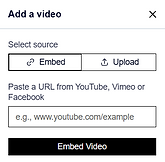
5. When you click on 'add a video' you will be given 4 further options. You can either embed a video from Youtube, Vimeo or Facebook or you can click to upload a video (max. 20 mins length) from your own device.

Downloading and/or sharing content
Videos - Download
To download a video from the chat room to your device, click on the video and then click the 3 vertical dots in the bottom right corner. Click on Download. When visiting the video library on an pc/laptop, the download link is on the bottom right of the video. This facility is not presently available on mobiles - we are looking for a work-around to that.

Images - Download
To download an image from the chat room, click on the image. It will open on a new page. Right click and click on Save image as ... When in the memes library, click on the image, it will open on a new page - then click on download icon.
Files - Download
Click on the download link.

Audio - Download
Click on the download link on the audio-player in the audio library.
Videos, Images, Files - Sharing
There are a wide variety of devices (PC's, laptops, tablets, phones) on the market. Many have in-built social media share apps specific to those devices. We could not possibly cover all the options here. The easiest way that we have noted (and tested) is to copy the link to the video, image or file and attach a screen-shot when sharing it to various social media outlets. This also ensures that there is no issue with file sizes.
Images - Sharing - Option 2
There are a limited number of social media share options for images on the memes library.